Biggest Pixma Ts202 Buying Mistakes (And How to Avoid Them)
The consumer printer market has undergone a significant transformation over the last decade. As many manufacturers pivot toward expensive high-yield ink tank systems or complex multi-function office hubs, a specific niche of users has been left searching for simplicity. The Canon Pixma TS202 is the embodiment of that simplicity. It is an entry-level, single-function inkjet printer designed for those who need to print occasionally without the clutter of scanners, fax modules, or wireless networking protocols. However, because it sits at the absolute bottom of the price spectrum, it is perhaps the most misunderstood piece of hardware in the modern home office.
Buying a printer based solely on the lowest sticker price is a strategy fraught with long-term financial peril and workflow frustration. While the TS202 is an excellent machine for the right person, it is a catastrophic choice for the wrong one. Most complaints regarding this model stem not from hardware failure, but from a mismatch between the buyer’s expectations and the device’s intentional limitations. To ensure a successful purchase, one must understand the nuance of total cost of ownership, connection topology, and media handling. This article explores the most common mistakes made when purchasing the Pixma TS202 and provides a roadmap for avoiding these pitfalls.
Understanding the Pixma TS202 Value Proposition
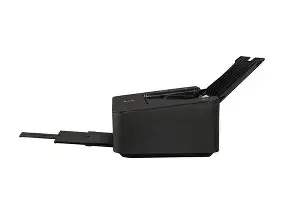
Before diving into the mistakes, it is essential to define what the TS202 actually is. It is a compact, USB-only inkjet printer that utilizes a two-cartridge system: one pigment black cartridge and one dye-based tri-color (Cyan, Magenta, Yellow) cartridge. It lacks a flatbed scanner, an automatic document feeder, and a screen. It is built for a singular purpose: taking digital data from a computer and placing it onto paper with as little physical footprint as possible.
For a student in a dorm room or a home user who only needs to print a return label or a short letter once a month, this device represents a low-barrier entry into the world of printing. However, the price tag often blinds consumers to the operational realities of inkjet technology. The following sections break down the errors that lead to "buyer’s remorse" and how to navigate the purchasing process with open eyes.
Mistake #1: Ignoring the Lack of Wireless Connectivity
The single most frequent mistake made by TS202 buyers is assuming that all modern printers come with Wi-fi or Bluetooth capabilities. In an era where even refrigerators connect to the internet, it is easy to assume a printer appearing in 2024 or 2025 listings would support mobile printing. This is not the case with the TS202. It requires a physical USB connection to a host device, typically a desktop or laptop computer.
Buyers who intend to print directly from their iPhones, iPads, or Android devices will find themselves at a dead end. There is no AirPrint support, no Mopria certification, and no way to "beam" a document to the machine. To avoid this mistake, users must evaluate their setup. If your primary computing device is a tablet or if you keep your printer in a closet away from your desk, the TS202 will be non-functional for your needs. Always verify that you have a spare USB-A port on your computer; many modern laptops only have USB-C ports, necessitating the purchase of an additional adapter or a specific USB-B to USB-C cable, which can add 20% to the initial cost of the printer.
Mistake #2: Underestimating the Cost of Consumables
The "Razor and Blades" business model is alive and well in the entry-level printer market. The TS202 is often sold at a price point that is barely above the cost of the ink cartridges included in the box. This creates a psychological trap where the buyer feels they are getting an incredible deal, only to realize sixty days later that replacing the ink costs more than the printer itself.
Because the TS202 uses a tri-color cartridge, if you print a series of documents with heavy blue accents, you may run out of Cyan while your Magenta and Yellow reservoirs are still half-full. Because the colors are physically housed in one unit, you must replace the entire cartridge, effectively wasting the remaining ink. High-volume users should look toward individual ink tank systems. The TS202 is only "cheap" if you print so infrequently that you only replace the cartridges once or twice a year.
Mistake #3: Overlooking the Single-Function Design
In a world of All-in-One (AIO) printers, the TS202 is a "Single-Function" device. This means there is no glass platen for scanning old photos and no way to making a quick photocopy of a birth certificate or an ID card. Many buyers realize this only after they have unboxed the unit and need to send a signed document back to an employer.
While smartphone apps like Adobe Scan or Microsoft Lens have made document scanning easier, they are not a replacement for a high-resolution flatbed scanner when it comes to photo digitization or multi-page document processing. If you anticipate needing to "copy" or "scan" even once every few months, the small savings found in the TS202 compared to its sibling, the TS302 or TS352, are quickly negated by the inconvenience of not having those features built-in.
Discover deals on Electronics — updated daily.
Shop Amazon →Detailed Product Analysis: The TS202 Specifications
To truly understand where the TS202 fits, we must look at its technical ceiling. It is not a powerhouse, but it is reliable within its specific parameters. Below is a breakdown of the physical and technical attributes that define the user experience.
| Feature | Specification | Impact on User |
|---|---|---|
| Print Technology | Inkjet (Fine Hybrid System) | Focuses on sharp text and vibrant color photos. |
| Connection | High-Speed USB | Requires a cable; no wireless lag but limited mobility. |
| Paper Capacity | 60 Sheets (Rear Tray) | Smaller footprint, but requires frequent refilling for big jobs. |
| Print Speed | Approx. 7.7 ipm (Black) / 4.0 ipm (Color) | Patience is required; not suitable for 50-page reports. |
| Max Resolution | 4800 x 1200 dpi | Surprisingly high for the price; excellent for 4x6 photos. |
Mistake #4: Mismanaging the Print Head Maintenance
A common issue with low-cost inkjet printers like the TS202 is the drying of ink in the print head. This happens most frequently when the printer is left unused for weeks or months at a time. Many users buy the TS202 specifically because they don't print often, which ironically leads to the very behavior that ruins the machine.
Unlike some high-end printers that have expensive permanent print heads, the TS202 uses "FINE" cartridges where the print head is integrated into the cartridge itself. This is actually a "pro" masquerading as a "con." If your ink dries up and clogs the nozzles, you don't have to throw the printer away; you simply replace the cartridge, and you have a brand-new print head. However, users often mistake a simple clog for a dead printer. To avoid this, it is recommended to print a small test page once a week to keep the ink flowing and prevent the nozzles from crusting over with dried pigment.
Mistake #5: Using Substandard Paper for Photo Printing
The TS202 is surprisingly capable of producing high-quality borderless 4x6 photos. Many buyers purchase the unit for this purpose but then attempt to use standard 20lb copier paper. This results in "cockling" (wavy paper) because the inkjet saturates the thin fibers, and the colors look dull because the ink soaks into the paper rather than sitting on a treated surface.
To get the best out of this device, you must match the media to the output. If you are printing a photo, you must use dedicated glossy or matte photo paper. If you are printing a resume, utilizing a heavier 24lb or 28lb bright white paper will make the TS202’s pigment-black ink look almost as sharp as a laser printer. Buying a budget printer does not mean you should buy the cheapest possible paper; in fact, higher quality paper can help mitigate some of the "budget" look of the final product.
Pros and Cons of the Pixma TS202
When evaluated fairly, the TS202 has clear strengths and weaknesses. Prospective buyers should weigh these lists against their specific needs rather than relying on a generalized star rating.
- Pro: Minimalist Footprint. The lack of a scanner bed makes this one of the shallowest printers on the market. It fits on narrow bookshelves and small dorm desks where an All-in-One would hang over the edge.
- Pro: Simplified Setup. Because there is no Wi-fi to configure, setup involves plugging in a power cord, a USB cable, and snapping in two cartridges. It is the "Plug and Play" king of the printer world.
- Pro: Hybrid Ink System. It uses pigment-based black ink for documents, which is smudge-resistant and highlighter-friendly, while using dye-based colors for vibrant photo reproduction.
- Pro: Price. It remains one of the most accessible entry points for households on a strict budget who need reliable document output.
- Con: High Operating Costs. If used for more than 20–30 pages a month, the cost per page (CPP) becomes prohibitive compared to laser or tank printers.
- Con: Loud Operation. In its effort to keep costs low, Canon did not invest heavily in sound dampening. The machine is noticeably noisy during the initial feed and printing cycles.
- Con: No Auto-Duplexing. If you want to print on both sides of a page, you must manually flip the paper and re-insert it into the rear tray. This is tedious for multi-page documents.
- Con: Rear Feed Only. There is no internal paper cassette. Paper sits exposed in the back, where it can collect dust or get knocked over in high-traffic areas.
Buying Guide: Is the TS202 Right for You?
To avoid the mistakes mentioned above, follow this diagnostic guide before finalizing your purchase. The TS202 is a niche tool, and the "mistake" is usually the user trying to use it for a purpose it wasn't designed for.
Step 1: Check Your Device Compatibility
Do you own a Chromebook? While some Chromebooks support USB printing, the experience can be finicky. Do you only use a smartphone? If so, stop here and look for the TS352 or a similar wireless model. The TS202 is strictly for Windows and macOS users who are comfortable with a wired connection.
Step 2: Calculate Your Monthly Volume
Count how many pages you print in an average month. If the number is under 20, the TS202 is a great choice. If the number is between 20 and 50, you are in the "danger zone" where ink costs will start to sting. If you print more than 50 pages a month, you should absolutely skip the TS202 and invest in an EcoTank or a monochrome Laser printer. The initial $100–$150 premium you pay for those machines will be recouped in ink savings within six to nine months.
Shop the latest Electronics picks on Amazon.
Browse Now →Step 3: Evaluate Your "Need for Speed"
The TS202 is slow. It takes its time to ensure the ink is placed correctly. If you are a student who frequently prints 30-page research papers fifteen minutes before class, the slow "inches per minute" (ipm) rating of this printer will cause significant stress. This is intended for those who print a recipe, a shipping label, or a single letter at a time.
Step 4: Assess Your Space
One of the hidden benefits of the TS202 is its height. Without a scanner lid, it can sit inside a desk cubby or on a low shelf. Measure the height of your intended storage area. Remember to leave space at the back for the paper tray to extend upwards and space at the front for the output tray to fold down.
The Maintenance Trap: Keeping the TS202 Alive
Many users complain that the TS202 "died" after three months. In 90% of cases, the printer hasn't died; the cartridges have simply dried out. Because this printer is so inexpensive, users treat it as a disposable "throwaway" device. However, with basic maintenance, these machines can last for years. Avoid the mistake of turning the printer off by pulling the power plug or using a smart outlet to cut the power. When you press the actual Power button on the printer, it performs a "parking" maneuver where the print head is moved to a sealed cap that prevents the ink from drying out. If you cut the power abruptly, the head remains exposed to the air, significantly increasing the risk of clogs.
Furthermore, avoid the temptation of using "remanufactured" or "third-party" cartridges if you want consistent results. While they are cheaper, the TS202 is highly sensitive to ink viscosity. Poorly formulated third-party ink can leak or fail to trigger the internal "low ink" sensors correctly, leading to air being sucked into the delivery system.
Environmental Considerations
Another mistake buyers make is failing to consider the environmental footprint of a low-end inkjet. Because the cartridges integrate the print head, every time you run out of ink, you are throwing away a significant piece of electronic hardware (the nozzles and the circuitry on the cartridge). To mitigate this, investigate cartridge recycling programs. Many office supply stores offer credit or rewards for returning these specific Canon FINE cartridges, which can help offset the high cost of the next set.
Conclusion
The Canon Pixma TS202 is a masterclass in compromise. To reach its accessible price point, Canon stripped away almost every convenience modern users have come to expect: there is no Wi-fi, no scanner, no duplexing, and no high-speed output. For some, these omissions make the device a relic of a bygone era. For others, it is the perfect solution—a no-nonsense, easy-to-store tool that simply puts ink on paper when asked.
The "buying mistakes" associated with this model almost always occur when a user ignores the technical specifications in favor of the price tag. By understanding that this is a wired-only, low-volume machine with high consumable costs, you can make an informed decision. If you have a laptop, a USB cable, and an occasional need to print text or the occasional photo, the TS202 will serve you well. However, if you crave the convenience of mobile printing or need to digitize documents, the smartest move is to look one or two rungs higher on the Pixma ladder. In the world of electronics, the cheapest option is only a bargain if it actually does what you need it to do.